


You paid for a website and it is live. Now you want to get inside it, change a price, swap a photo, or just see what is there. This guide shows you exactly where to log in, what you are looking at once you are in, and which handful of menu items actually matter.
If you have ever signed in to your Valla Hub account, looked around for an “edit my website” button and come up empty, you are in the right place. That is the single most common question we get, and the answer is in the first section.
Two logins, and which one you need #
Every Valla Hub customer has two separate accounts. They are not connected and they do not share a password. Knowing which is which solves most of the confusion.
| Your Valla Hub account | Your website dashboard | |
|---|---|---|
| Where | vallahub.com | yourbusiness.com/wp-admin |
| What it is for | Billing, invoices, your domain name, renewals, support tickets | The actual website: pages, photos, prices, bookings, enquiries |
| Log in with | The email you signed up with | A separate username and password for your site |
| You want this when | Updating a card, checking what you pay, renewing a domain | Changing anything a visitor can see |
So: your Valla Hub account is the landlord’s office. Your website dashboard is the keys to the building. Nothing you change in one shows up in the other.
How to log in to your website #
Take your own web address and add /wp-admin to the end of it. If your site is yourbusiness.com, you go to:
https://yourbusiness.com/wp-admin
You will land on a screen like this one.
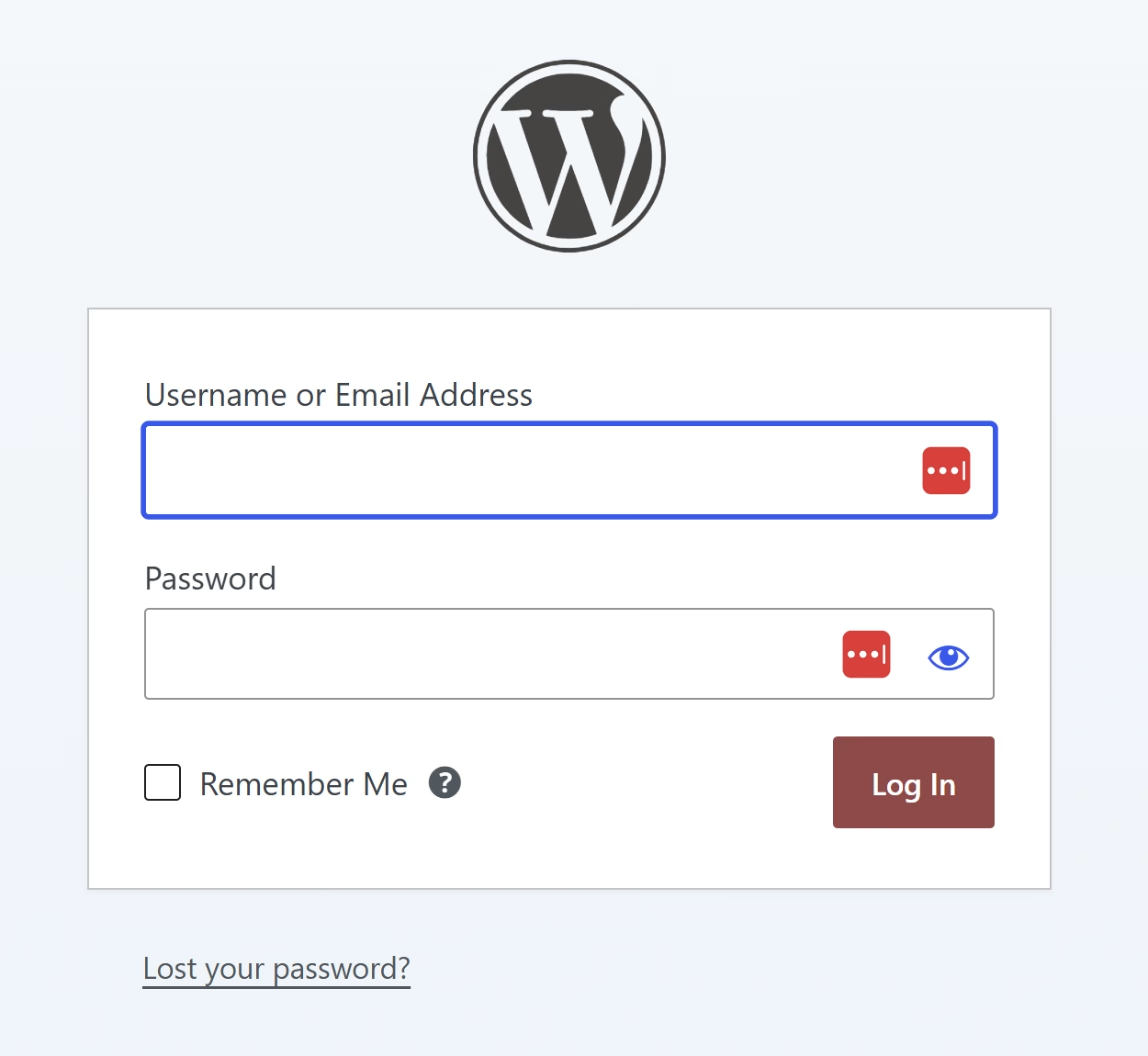
Enter your username or the email address on your website account, then your password, then press Log In. Tick Remember Me on a device that only you use and it will keep you signed in for a couple of weeks.
That address works from a phone, a tablet or a laptop. There is no app to install.
What to do if you do not know your password #
Most owners have never set one, because the site was built for them. That is normal and it takes about a minute to fix.
- Go to
https://yourbusiness.com/wp-admin. - Click Lost your password? underneath the login box.
- Type the email address on your website account. For most of our customers that is an address at your own domain, something like
you@yourbusiness.com. - Check that inbox for a reset link and choose a new password.
If the reset email does not arrive, check your spam folder first, then contact us and we will confirm which email address your account is attached to. We can point the reset at the right inbox. We cannot see or send you your existing password, because nobody can: it is stored scrambled, by design.
What you are looking at #
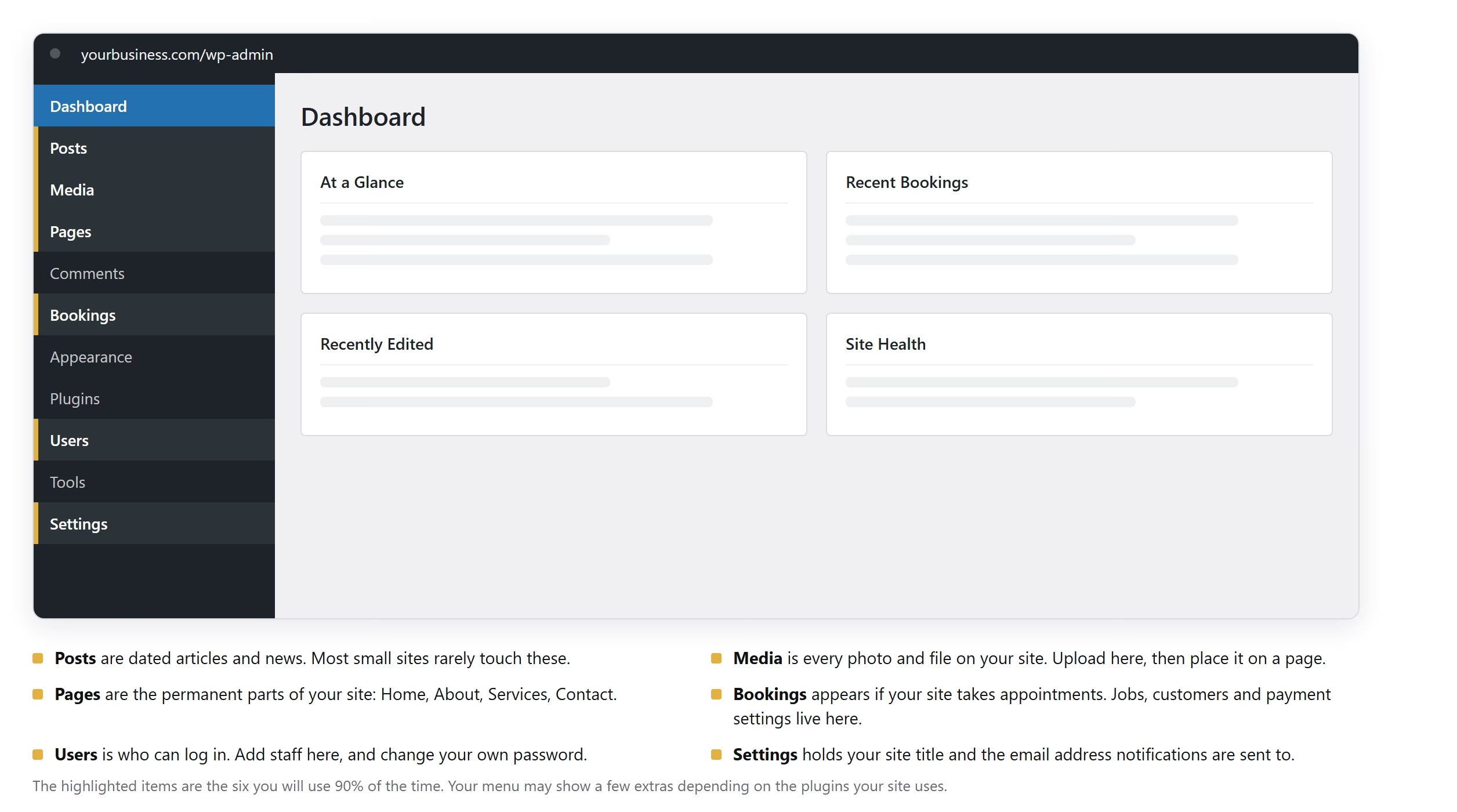
Once you are in, you get a dark menu down the left and a work area on the right. It looks like a lot. It is not. Here is the map.
The six things you will actually use #
Pages is where your real website lives. Home, About, Services, Contact. Hover over a page name and click Edit to change its words or pictures. This is the one you will use most. If you are not sure which pages you should even have, we wrote a guide to the pages a small business website needs.
Media is every photo and file on the site. Upload a photo here first, then drop it onto a page. Photos straight off a phone are often very large, so let the site resize them rather than uploading a 12 megabyte original.
Bookings only appears if your site takes appointments or orders. Your jobs, your customers, your pricing and your payment settings all live under here.
Users is the list of people who can log in. Add a staff member here, or click your own name to change your password and the email address your site sends notifications to.
Settings holds the site title and the main contact email. If enquiries are going to the wrong inbox, this is usually why.
Posts is for dated articles and news. Plenty of small business sites never touch it.
Everything else in that menu is plumbing. Appearance, Plugins and Tools can break the look of your site if you experiment, so leave those alone unless you are following instructions from us.
Save it to your phone #
The dashboard works in a phone browser, and you can make it feel like an app:
- iPhone: open
yourbusiness.com/wp-adminin Safari, tap the share icon, then Add to Home Screen. - Android: open it in Chrome, tap the three dot menu, then Add to Home screen.
You get an icon that opens straight to your site. Save the password in your phone’s keychain or password manager at the same time and you will never hunt for it again.
Keeping your login safe #
Your dashboard can change everything a customer sees, so treat it like your online banking.
- Use a password you do not use anywhere else, and let your phone remember it.
- Give staff their own logins rather than sharing yours. You can remove one person later without locking everyone out.
- Turn on two factor authentication if your site offers it.
- We will never email you asking for your password. If something claiming to be from us does, read how to spot a phishing email.
There is more in our guide on keeping your small business website secure.
Frequently asked questions #
Why does my Valla Hub account not show my website? #
Because they are two different systems. Your Valla Hub account at vallahub.com handles billing, your domain and support. Your website content lives at yourbusiness.com/wp-admin and has its own separate login. Changing your Valla Hub password does not change your website password.
What is my username? #
It is usually your first name, or the business email address your site was set up with. You can log in with either the username or the email address, so if you know the email, that is enough. Still stuck? Contact us and we will confirm it.
Can I break my website by logging in and looking around? #
Not by looking. Clicking through Pages, Media and Settings to read what is there is completely safe. You only change something when you press an Update or Save button. If you want to practise, open a page, change one word, press Update, look at the live site, then change it back.
Why are enquiries from my website not reaching me? #
Nine times out of ten the notification email address is wrong or the messages are landing in spam. Check Settings for your main site email, check the settings of your contact form or booking system separately because they often have their own address, and search your spam folder for your own domain name.
Can Valla Hub make changes for me instead? #
Yes. Hosting plans cover keeping the site online, secure and backed up, not ongoing content edits, but we do that as a service. Take a look at our website services, or get in touch and tell us what you need changed.
Not a customer yet and wondering what is involved? Start with our website hosting plans or get started here.


